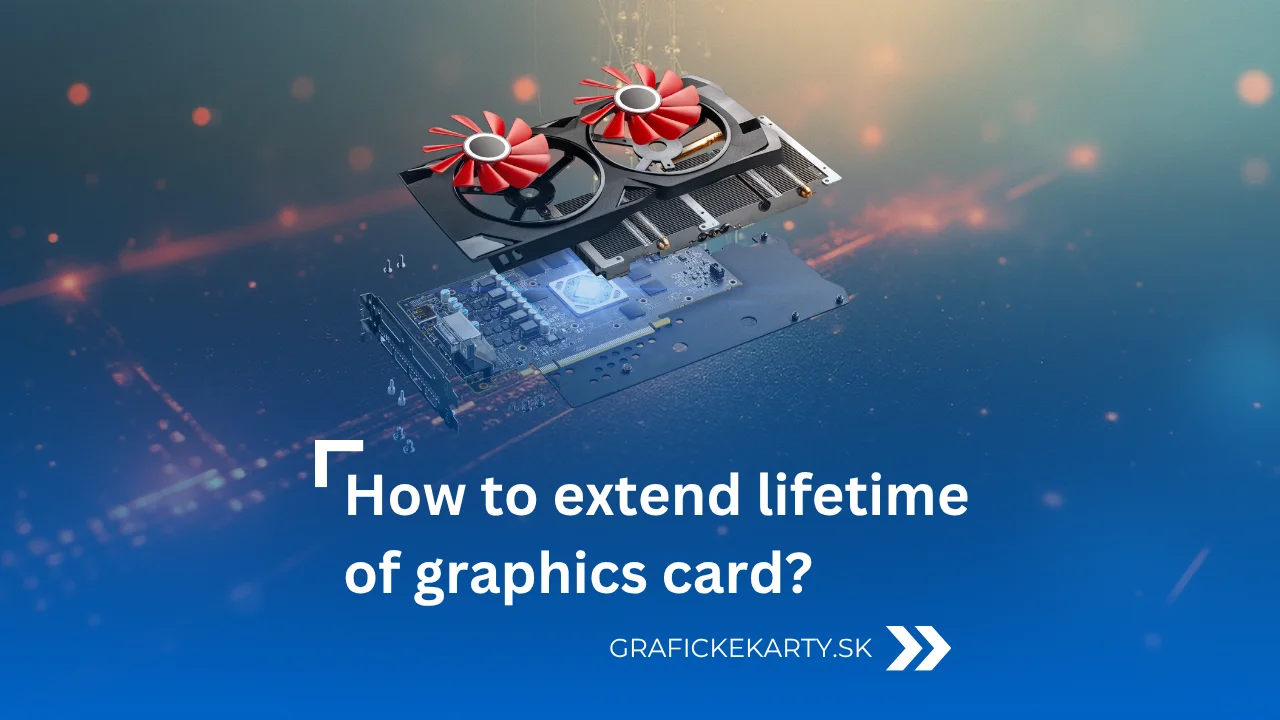
The lifetime of graphics card depends on a number of details that many users underestimate. In recent months, the internet has been flooded with reports of burnt out power connectors and damaged graphics cards.
Users who have invested hundreds or thousands of dollars in models like the RTX 5090 Founders Edition or Radeon RX 9070 XT have been left shocked when their new card literally “cooked” due to a faulty 12V-2×6 connector or an improperly plugged cable. Similar cases are not isolated – cracked PCIe slots or cards warped by their own weight are also on the rise. If you want the lifetime of graphics card to be as long as possible, you just need to pay attention to a few important details.
However, these problems are not just about bad luck or poor design. In most cases, they are caused by a combination of small but fundamental mistakes – poor fit, neglected cooling, poor power supply or unnecessary overclocking which rapidly reduces the lifetime of graphics card. In today’s article, we’ll take a look at how such situations can be easily avoided and what you can do to make your graphics card last for years without the smell of burnt plastic.
Insufficient power supply and poor quality power supply
One of the most commonly underestimated mistakes. If the power supply doesn’t provide enough power or has fluctuating voltages, it can cause system instability, reboots, or even damage to the graphics card itself. The solution is simple – choose a quality power supply with a certification (ideally 80 Gold or higher) and a power rating at least 20-30% above the intended power consumption of the build. A stable power supply is essential for the lifetime of graphics card and also eliminates the risk of overheating connectors.
Dust – the silent enemy to lifetime of graphics card
Dust settles on heatsinks, fans and passives, reducing airflow and increasing temperatures. This shortens the life of both chips and fans in the long term. Clean your computer at least once every six months – preferably with compressed air or a small vacuum cleaner designed for electronics. A clean system can have temperatures as low as 5-10°C (41–50 °F), which has a significant impact on both stability and component life.
Incorrect fan settings
Fans that are constantly running at maximum will wear out faster and create unnecessary noise. Set your own speed curve in drivers (e.g. MSI Afterburner, GPU Tweak or Adrenalin) – keep them quiet at low load, only spin to the minimum required at high load. This will reduce noise, temperatures and mechanical wear. Proper ventilation of the entire cabinet is equally important – cold air must have somewhere to flow and hot air somewhere to escape.
Risky overclocking without adequate cooling
While overclocking will increase performance, without quality cooling it’s a recipe for overheating and faster chip aging. Prolonged temperatures above 85°C (185 °F) shorten the life of both the VRAM and the power cascade. A safer alternative is undervolting – reducing voltage while maintaining performance. The result is lower temperature, power consumption and noise. This is a method used by more and more experienced users today because it brings long-term stability without performance loss and improves the lifetime of graphics card.
Forgotten replacement of heat transfer paste and pads
The thermoconductive paste between the chip and the heat sink dries out over time, and so do the thermal pads on the memory. It is recommended to replace them every 2-3 years, especially if the card temperatures rise for a long time. Modern pastes and pads can reduce temperatures by several degrees and prevent overheating. If you don’t feel like replacing it, it’s better to entrust it to a service center – improper application can make the temperatures even worse.
Vertical mounting in an unsuitable cabinet
Vertical mounting of a graphics card looks attractive, but in a closed cabinet with a small distance from the sidewall it can significantly impair cooling. If you don’t want to give up this design, make sure the case has sidewall vents or an additional side fan.
Otherwise, heat will build up between the card and the glass, increasing VRAM and GPU temperatures, and increasing the risk of overheating connectors or melting plastic.
A problem named GPU sag
Heavy graphics cards can “sag” under their own weight over time, putting pressure on the PCIe slot and the card itself. The solution is a graphics card support or a simple bracket. This is an inexpensive solution that will prevent mechanical damage and ensure stable storage of the GPU.
When mounting, always make sure the card is aligned in the slot and the PCIe connector is not under tension.
Smart settings in games
You don’t always need to push everything to the limit. Playing on “Ultra” often doesn’t make a noticeable difference compared to “High”, yet the card runs at full performance. It’s also a good idea to limit FPS – if your monitor is 144Hz, there’s no point in rendering hundreds of frames per second. This simple step will reduce temperatures, power consumption and noise. In some cases, turning on V-Sync or adaptive sync mode(G-Sync / FreeSync) also helps.
Summary – The lifetime of graphics card
Taking care of your graphics card is not rocket science. Just follow a few simple principles – a clean computer, proper cooling, stable power supply and sensible use. If you keep temperatures, dust and balanced performance in mind, the lifetime of graphics card will be extended by several years. Most importantly, you’ll avoid situations where all that’s left of a beautiful gaming centre is smoke, smells and an expensive lesson in care.
Once you know how to care for your GPU, all that’s left is to choose the right graphics card that will give you both performance and peace of mind for years to come.